
[Security: Entra Agents] Secure And Monitor Your Copilot Studio AI Agents Real Time

This blog post explains how to secure Copilot Studio Agents with real time monitoring using Microsoft Defender for Cloud Apps and the Power Platform Admin Center. How do I configure this, what are the options and how can I view this in real time? Also be aware of the license change starting from 1 July 2026.
1. Copilot Studio Agents
Building Agents with Copilot Studio is a great way to explore Agents in a secure way. Nowadays organizations and employees are creating and building agents every day. Because Copilot Studio is low-code, every employee can create a agent without any difficulties.
Agents can do a lot of things, such as automate tasks or just giving answers to your questions. With Copilot Studio you are able to connect these Agents to your data resources in an easy way. Within Copilot Studio your Agents are secured by default, meaning they include built-in protection againts various threatsm such as UPIA (user prompt injection attacks) and XPIA (cross domain pompt injection attacks).
1.1 So Great, I'm Already Protected By Default, Right? Why This Blog? :)
As described above all the Agents you build using Copilot Studio are secured, but we want to increase our monitoring capabilities. We want to know and see what an Agent does and how it operates. Nowadays attackers already started to generate malicious prompts for your Agent, for example revealing confidential data or automatically sending information. With Defender for Cloud Apps we can monitor and block this activity before it's sending or leaking information. For example (source MS Learn):
Attackers can attempt to manipulate these agents by:
Injecting malicious prompts;
Triggering unintended tool executions;
Exploiting data sources to escalate privileges or exfiltrate data.
2. Requirements
To configure Agent protection, the following are required:
An external threat detection service configured to evaluate agent tool-use requests. This service must expose a REST API endpoint. For configuration in Copilot Studio, the base URL of the security provider web service is required;
A Microsoft Entra application to enable authentication between the agent and the threat detection service;
A user with the Power Platform Administrator role to configure the connection between the agent and the external threat detection system at both the individual environment level and the environment group level.
After July 1, 2026:
Microsoft Agent 365 license.
Before July 1, 2026:
Defender for Cloud Apps license;
Opt-in to the Microsoft Defender for Cloud Apps and Defender XDR preview features.
3. How To Configure Entra
First we need to configure a Entra application. To configure this we could use a Powershell script or do this manually. In this post I will discuss both methods.
3.1 Using Script Method
If you want to configure this by using the script:
Download the Create-CopilotWebhookApp.ps1 script.
In this script you can configure the following:
TenantID: Your tenant ID in GUID format (required);
Endpoint: The base URL for the external threat detection service. In our case we are using Microsoft Defender. Follow below steps to obtain this (required);
DisplayName: Your Entra application name (required)
FICName: Your Federated Indentity Credential name, for example AgentDefenderProd (required)
DryRun: This option is optional and will only perform a validation run (optional).
3.1.1 Get The Defender Endpoint URL
Browse to Microsoft Defender and navigate to System -> Settings -> Security for AI agents and select "Copilot Studio"
Now you will see the URL that's needed for our Endpoint URL in the script.


Notice the warning showing that we need a Microsoft Agent 365 license if we want to continue using this method. Now get the URL. At this time of writing the URL will be: https://mcsaiagents.security.core.microsoft/v1/protection
Now that we have the URL, proceed with running the script. The script outputs the App ID that has been created in Entra. Write down this App ID because we will need this later when configuring the threat detection in Power Platform admin center.
This App ID is also needed in the Defender page as described above. Go back to the "Security for AI agents" settings menu and select Copilot Studio. Select "Edit" and enter the App ID that has been created using the script.

3.2 Configure Manual
Follow these steps if you want to create this manually:
3.2.1 Entra App Reg
- Go to the Entra admin center (entra.microsoft.com)
- Browse to Entra ID -> App registrations -> select "New registration"

After creation write down the App ID because we will need this later when configuring the threat detection in Power Platform admin center.
Next we are going to authorize the Entra Application. Browse to Manage -> Certificates & secrets -> Federated credentials and select "Add credential"

In the Feredated credentials screen select "Other issuer" and fill in the following:
Issuer: https://login.microsoftonline.com/{yourtenantId}/v2.0
Type: Explicit subject identifier
Value: In the value input we are going to need our tenant ID and Security for AI Agent url to be converted to a Base64 code. Microsoft has provided a PS script to convert these. Start the value with: /eid1/c/pub/t/{base 64 encoded tenantId}/a/m1WPnYRZpEaQKq1Cceg--g/{base 64 encoded endpoint}
Name: Name the creds details
# Encoding tenant ID
$tenantId = [Guid]::Parse("yourtenant-id")
$base64EncodedTenantId = [Convert]::ToBase64String($tenantId.ToByteArray()).Replace('+','-').Replace('/','_').TrimEnd('=')
Write-Output $base64EncodedTenantId
# Encoding the endpoint
$endpointURL = "https://mcsaiagents.security.core.microsoft/v1/protection"
$base64EncodedEndpointURL = [Convert]::ToBase64String([Text.Encoding]::UTF8.GetBytes($endpointURL)).Replace('+','-').Replace('/','_').TrimEnd('=')
Write-Output $base64EncodedEndpointURL
As example you will get something like this:
/eid1/c/pub/t/tenantidbase64/a/m1WPnYRZpEaQKq1Cceg--g/aHR0cHM6Ly9tY3NhaWFnZW50cy5zZWN1cml0eS5jb3JlLm1pY3Jvc29mdC92MS9wcm90ZWN0aW9u

*Note: Don't forget to fill in the App ID in your Defender settings as described above.
4. Enable Power Platform
With the App reg now registred it's time to enable our real time protection in Power Platform.
Follow these steps to enable real time protection:
- Browse to the Power Platform Admin Center (https://admin.powerplatform.microsoft.com/)
- Select "Security" -> "Threat detection" -> select "Microsoft Defender - Copilot Studio Agents"

Next enable the protection and select "Manage"

Now select your environment -> "Set up"

In the manage screen fill in the Entra App ID and the MS Defender link and select "Save".

Now your agents are nearly being realtime reviewed against threats!
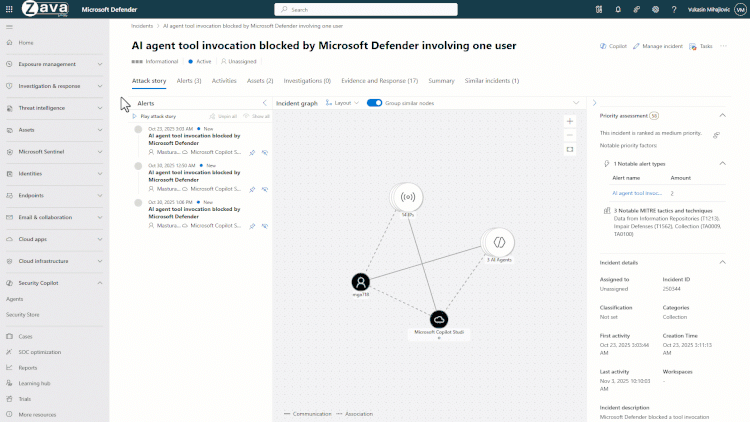
5. Great! Where Can I See These Alerts?
All your Agent related alerts will now be shown in your MS Defender under "Incidents".
5.1 So How About The Agent 365 License And My CA Agent Policy?
Like in one of my previous blog, I wrote how to configure a CA policy for your Agents. Now starting from the first of July 2026 you will need an Agent 365 license in order to still be able to use this CA policy next to an Entra P1 or P2 license.
5.2 Will I See Any Difference In The MS Defender Portal When I Have A Agent 365 License?
While I activated my Agent 365 license I saw the following in my Defender portal.

As you can see the Agent 365 is now visible in this overview. You also see that I have set my agents to "Block" regarding security risks. As part of the license requirement you will need to create a policy starting from the first of July 2026. Creating this policy will be available starting first of July 2026.
6. Wrapping Up
Configuring and setting up real time protection for your Microsoft Copilot Studio Agents is a great addition when you want to start creating your own Agents. With security in mind you can now safely create and rollout Agents throughout your organization. I strongly recommend configuring this and also look at the new Agent 365 license, as this gives you more insights and security (like CA policies).